Conversations
Understand how conversations work in the AI assistant — current chat, history, when to start new ones, and what's isolated vs. shared.
What Is a Conversation
In Qritor, every interaction with the AI assistant happens within a conversation. A conversation contains the complete message history — everything you've said, AI's responses, and tool call results, all saved together.
Each novel can have multiple conversations, and their messages are completely independent of each other.
Current Conversation
When you open the AI assistant, you're in the current conversation by default. All messages you send and AI's replies are appended to this conversation.
The conversation title is automatically generated from the first message, making it easy to identify in the history list.
How Context Works
Each time you send a message, the AI doesn't just see the current conversation's chat history — it also automatically receives the following as background knowledge:
- Currently selected module/chapter: The highlighted item in the left module tree
- Modules referenced via @mention: Characters, scenes, etc. you actively reference in your message
- Novel settings, module structure, knowledge graph, and other global information
This means even in a new conversation, AI can access your novel data — conversations isolate chat history, not novel content.
Starting a New Conversation
How to Create
Click the "+" button at the top of the AI assistant to start a new conversation. The current conversation is automatically saved to history.
When You Should Start a New Conversation
The following situations call for a new conversation:
- Switching work topics: For example, you just finished discussing character design and now want to plan plot — a new conversation prevents earlier discussion from biasing AI's judgment
- When conversations get long: As a conversation accumulates many messages, AI has more context to process, which may affect response speed and quality. Starting fresh can help
- Experimenting: Want to try a different plot direction? Start a new conversation to test it out — if unsatisfied, just delete it without affecting the original conversation
- Clearing the chat area: A new conversation gives you a blank slate, but previous conversations aren't lost
The following situations don't need a new conversation:
- Multiple rounds of discussion about the same chapter/character — keeping them in one conversation works better
- AI just performed an action and you want adjustments — follow up in the same conversation
Isolation vs. Sharing Between Conversations
Understanding what's isolated and what's shared between conversations helps you use the AI assistant more effectively:
| Content | Shared Across Conversations? | Notes |
|---|---|---|
| Chat history | Isolated | Each conversation has independent message history, invisible to others |
| Novel data | Shared | Settings, characters, chapters — all novel content is accessible from every conversation |
| Knowledge graph | Shared | All entities and relationships in the relation graph |
| AI operation results | Shared | If AI modifies chapter content in conversation A, conversation B sees the updated result |
| @mention references | Isolated | Modules referenced via @ in a message only apply to that message |
In short: Conversations isolate the "exchange process" but share the "work data."
Conversation History
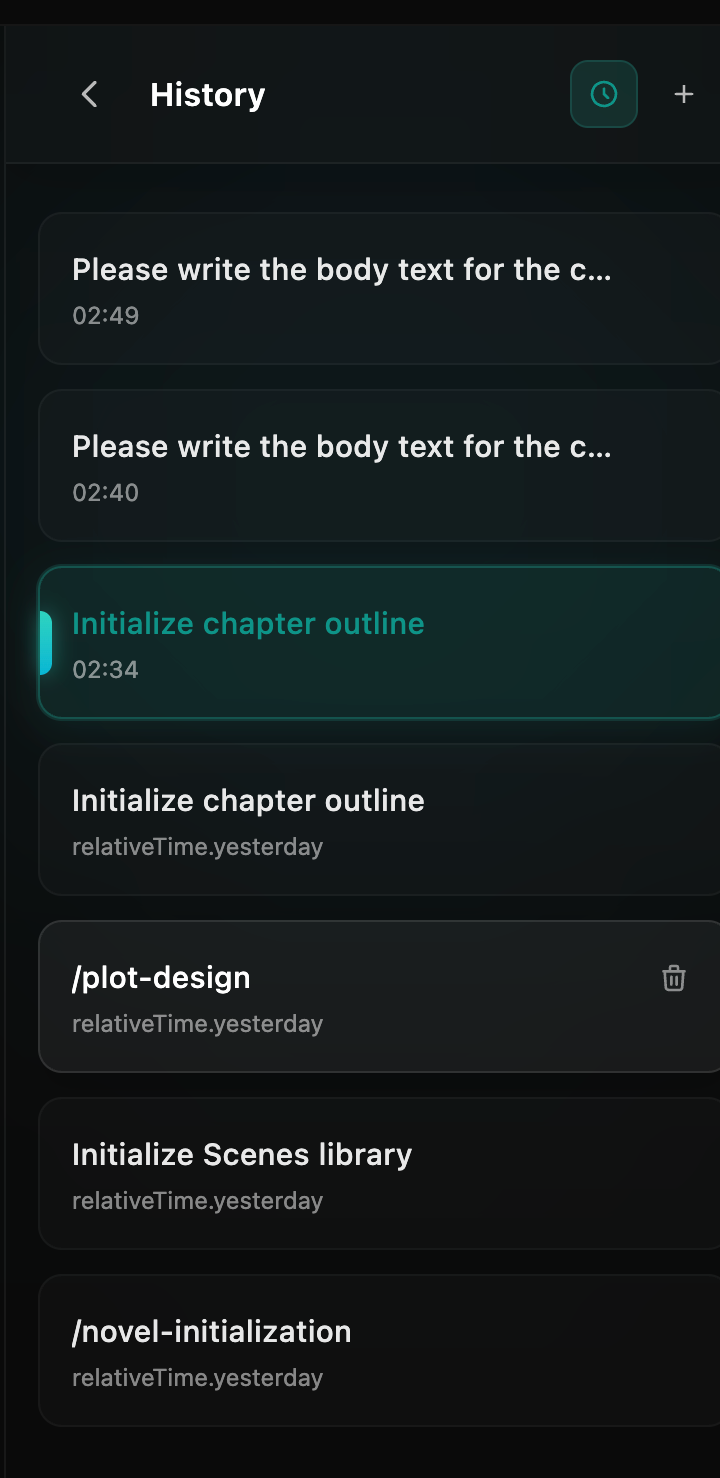
Viewing History
Click the clock icon at the top of the AI assistant to open the conversation history list. The list is sorted by most recently used, showing each conversation's title and time.
Continuing a Past Conversation
Click a historical conversation to load its complete message history and continue where you left off. All chat context is restored, so AI can "remember" what you discussed before.
Deleting Conversations
Hover over a historical conversation to reveal a delete button on the right. Deleting permanently removes all messages in that conversation.
Automatic Compression for Long Conversations
When a conversation accumulates enough messages to approach the AI model's context window limit, the system automatically triggers context compression:
- Older messages are compressed into a summary
- Recent messages are kept in full
- AI references the summary + recent messages when continuing
This process is automatic — no manual action needed. After compression, AI still "remembers" the key points discussed, just without retaining every detail of all historical messages.
If you notice AI's recall becoming fuzzy, you can start a new conversation and use @mention to reference any content you need.
Tips
- One topic per conversation: Group conversations by work topic — e.g., "Design protagonist," "Plan Volume 1 plot," "Polish Chapter 3" — for easier review and management
- Clean up periodically: Delete completed conversations you no longer need to keep the list tidy
- Leverage history: Unsure about a previously discussed approach? Open the historical conversation to review instead of asking again