Plot Management
Use storylines, plot events, and the foreshadowing system to control your story's rhythm and structure from a macro level, with both manual management and AI auto-extraction.
Overview
The biggest fear when writing a long novel is losing track of things — tangled plot threads, forgotten foreshadowing, uneven pacing. Qritor's plot management tools help you maintain control at the macro level, breaking complex stories into clear structures.
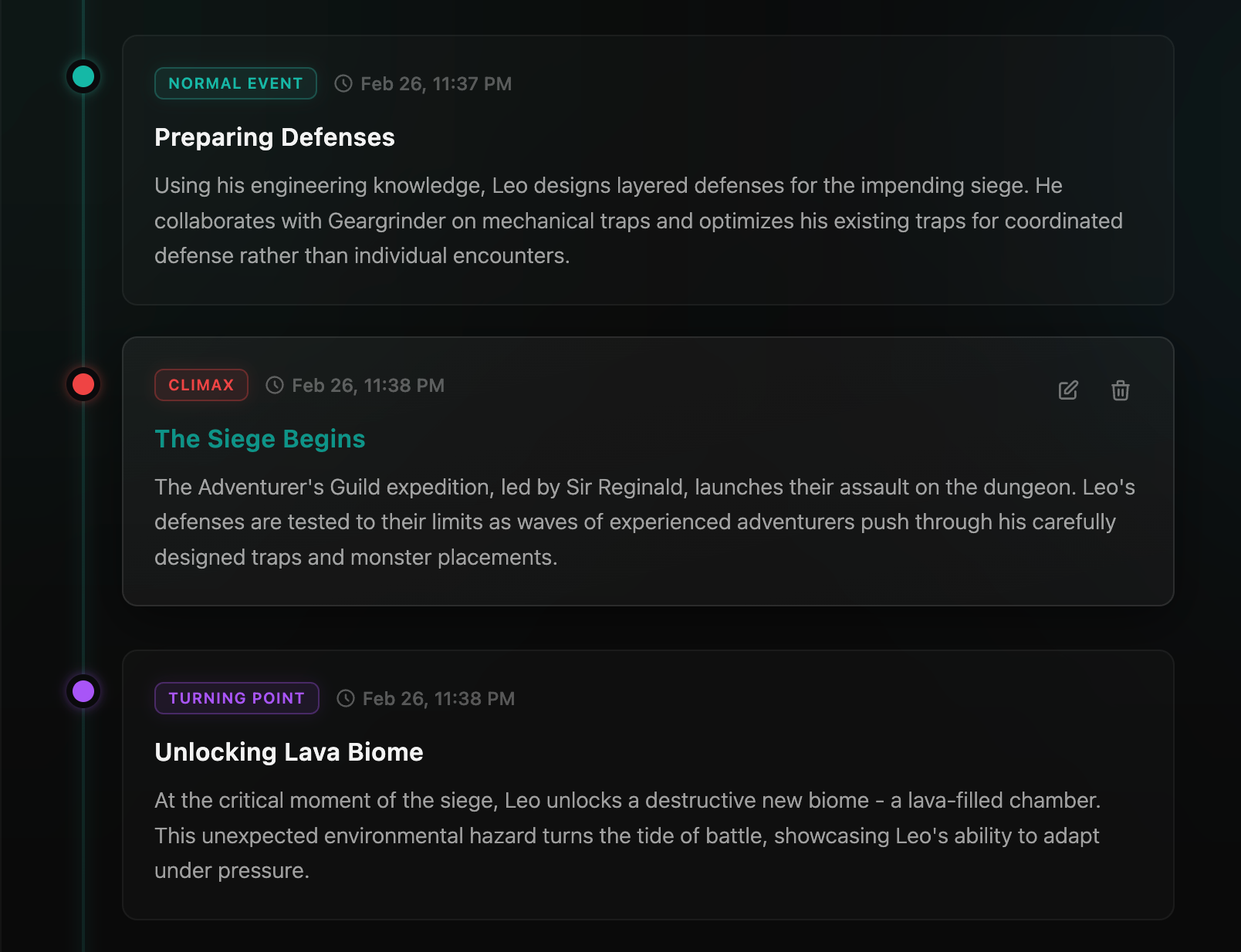
Plot management revolves around three core concepts:
- Storylines: Split your plot into multiple parallel threads (main plot, romance arc, subplots, etc.)
- Plot Events: Mark key moments in each chapter (turning points, climaxes, foreshadowing, etc.)
- Foreshadowing Tracking: Ensure every seed you plant gets properly resolved
How to Access
Click the "Plot Management" tab in the tab bar at the bottom of the editor to open the plot management panel, where you can view all storylines and plot events across your entire work.
The panel supports chapter filtering — select a specific chapter at the top to show only events linked to that chapter, making it easy to focus on the section you're currently editing.
Additionally, in the chapter editor toolbar there is a "Plot Organization" button. This button triggers AI to analyze the current chapter and automatically extract plot events (see "AI Auto-extraction" below).
Storylines
Storylines are macro-level divisions of your novel's plot. A long novel typically contains multiple parallel or intertwined storylines, such as:
- Main Plot: Core conflict progression
- Romance Arc: Emotional development between characters
- Subplots: Side stories, supporting character arcs
After creating a novel, the system automatically creates a "Main Plot" storyline.
Managing Storylines
At the top of the plot management panel, you can use the storyline dropdown to:
- Switch Storylines: Select a storyline from the dropdown to filter events by that thread
- Create Storyline: Click the "+" button, enter a name and description
- Edit Storyline: Click the edit button to modify the name or description
- Delete Storyline: Click the delete button — the storyline and all its events will be permanently removed
Plot Events
Plot events are key nodes in your story. Each event belongs to a storyline and can be linked to a specific chapter. Events are displayed in a timeline, forming a visual plot progression.
Event Types
| Type | Color | Description | Use Cases |
|---|---|---|---|
| Normal | Teal | Regular plot progression | Daily scenes, transitional passages |
| Turning Point | Purple | Major change in plot direction | Betrayal, unexpected discovery, identity reveal |
| Climax | Red | Peak tension of the story | Final battle, ultimate confrontation, emotional explosion |
| Resolution | Green | Closure of a storyline thread | Mystery solved, conflict resolved |
| Foreshadowing | Blue | Seeds planted for future developments | Hints, omens, seemingly unrelated details |
Creating Events Manually
- Click the "Add Event" button in the plot management panel
- Enter an event name
- Select the event type (Normal, Turning Point, Climax, Resolution, or Foreshadowing)
- Select the linked chapter
- Enter an event description (optional)
- Click confirm
AI Auto-extraction
This is the more efficient approach — let AI automatically identify key plot points from your written chapters:
- In the chapter editor toolbar, click the "Plot Organization" button
- AI analyzes the current chapter text, automatically extracting key plot points, foreshadowing, conflicts, and turning points
- Extracted results are displayed in the AI assistant, showing each event's name, type, and storyline
- Check the events you want to keep, then click "Apply Events" to batch-add them to plot management
You can also tell AI in Agent mode: "Organize the plot events for Chapter 3", and it will handle the extraction and creation automatically.
Editing and Deleting Events
Hover over an event card to reveal edit and delete buttons on the right:
- Edit: Modify the event's name, type, description, linked chapter, and all other properties
- Delete: Permanently remove the event (confirmation required)
Filtering Events
The panel provides multiple filtering options for quick navigation:
- By Storyline: Use the top dropdown to select a storyline and show only its events
- By Chapter: Select a specific chapter to show only its linked events
- Foreshadowing Only: Click the "Foreshadowing Only" button to show only unresolved foreshadowing — quickly check which seeds haven't been addressed
Foreshadowing Tracking
Foreshadowing is the soul of a long novel — and the easiest thing to forget. Qritor tracks foreshadowing as a special type of plot event, ensuring every seed you plant is never lost.
Foreshadowing Status
Each piece of foreshadowing has three states:
| Status | Description |
|---|---|
| Planted | Foreshadowing has been set up in a chapter, awaiting future revelation |
| Resolved | Foreshadowing has been revealed in a later chapter — the resolution chapter is recorded |
| Abandoned | Foreshadowing has been dropped and is no longer planned for resolution |
Creating Foreshadowing
Three ways to create foreshadowing:
- Manual: When adding a plot event, select "Foreshadowing" as the event type
- AI Extraction: Use the "Plot Organization" tool — AI will automatically identify foreshadowing in the text
- AI Agent: In Agent mode, tell AI: "Create a foreshadowing about the Imperial Seal in this chapter"
Resolving Foreshadowing
When a later chapter reveals a piece of foreshadowing:
- Find the foreshadowing event in the plot management panel
- Click the edit button
- Change the status to "Resolved"
- Select which chapter the revelation occurs in
- Save
You can also tell AI in Agent mode: "Resolve the XXX foreshadowing — it's revealed in Chapter N."
Foreshadowing Review
Click the "Foreshadowing Only" filter button to quickly check:
- How many foreshadowing seeds are still unresolved?
- Are there any long-forgotten seeds?
- Should any outdated foreshadowing be abandoned?
This is especially critical for serialized long novels — avoiding "digging holes without filling them" is one of the things readers care about most.